Account and plans
AOC Notifications: Alerts, Bell Panel and Push
AOC notifications are the messages that land in the bell panel at the top right of the app: plan reminders, community activity and the stock alert topics you follow. You can also get them as browser push alerts, so a Power stocks alert reaches you even when the AOC tab is closed.
On this page
Where do I find my notifications?
Log in and tap the bell at the top right of the app bar. On phones the bell also sits at the top of the side menu. A red badge shows how many are unread, up to 99+.
The panel drops down under the bell and leaves the page behind it visible, so you can check an alert without losing your option chain. Tap outside it or use the close icon to dismiss it.
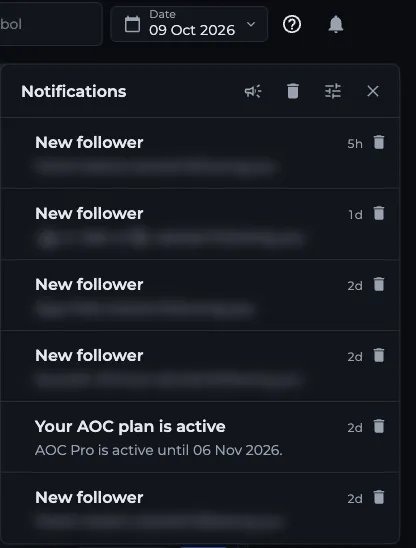
- 1Bell opens the panel
- 2Clear all removes every notification
- 3Notification settings: choose alerts
- 4Delete one notification
What kinds of notifications will I get?
- Plan: Your AOC plan is active, after a payment. Then a reminder 7, 3 and 1 day before AOC Pro or webinar access ends, with a link to pricing.
- Followers: New follower, when someone follows you. Tapping it opens your followers list.
- Community: New comment on your strategy or post, New reply to your comment, and You were mentioned.
- Alert topics: stock and index alerts for the topics you switch on, for example a new name in Power stocks.
- Announcements: messages from Team AOC to everyone, sometimes with an image.
How do I choose which alerts I get?
The Enable notification alert switch shows only in browsers that support web push. Topic choices are saved to your account, and every device you turned push on for follows them.
- Open the bell panel and tap the settings icon (Notification settings). You can also go to Settings and open Notifications.
- Under Alerts, switch on the topics you want: Power stocks, AI stocks, Triple S/R, Oi2Oi stocks, S/R stocks, Indices and MCX.
- To get them as pop-ups outside the app, switch on Enable notification alert and allow notifications when the browser asks.
- Tap Done.
How do I mark notifications as read?
Opening the panel marks everything as read, and the badge clears straight away. Items that were new keep a blue dot until you close and reopen the panel, so you can still see what came in.
There is no per-item read toggle. A notification with a link opens that page when you tap it and closes the panel.
How do I delete or clear notifications?
Each item has a delete icon on the right. To empty the list, tap the bin icon at the top (Clear all) and confirm. This removes them from your feed on every device; it does not change your alert topics.
The panel shows 20 at a time. Tap Load more at the bottom for older ones.
How often does the bell update?
While the app is open in a visible tab, AOC checks for new notifications every minute. A push that arrives while you are on the app shows as a small pop-up with a sound; tap it to open the panel.
If push alerts stop on a device, open Notification settings and switch Enable notification alert off and on again. Also check that the browser has not blocked notifications for aoccalculator.in.
Frequently asked questions
How do I turn on AOC stock alerts?
Open the bell panel, tap Notification settings and switch on the alert topics you want, such as Power stocks, AI stocks or Triple S/R. Turn on Enable notification alert too if you want pop-ups when the app is closed.
Why am I not getting AOC push notifications?
Check that Enable notification alert is on in Notification settings and that your browser allows notifications for aoccalculator.in. Push only covers the topics you follow, plus your own account alerts and announcements.
Does AOC remind me before my plan expires?
Yes. AOC sends a notification 7 days, 3 days and 1 day before your AOC Pro or webinar access ends. Plans never auto-renew, so renew from the pricing page if you want to continue.
Can I get notifications without logging in?
The bell panel and alert topics need an account. Sign in, then set your topics from the bell panel or Settings.
Last updated